
How to Easily Connect Wireless CCTV Camera to Your Mobile Phone
Want to know how to connect wireless CCTV camera to mobile phone? Wireless CCTV camera has revolutionized home and business security by providing convenience, flexibility, and remote monitoring. Connecting your wireless CCTV camera to your mobile phone allows you to access live feeds, receive alerts, and review recordings from anywhere. Here’s a step-by-step guide to help you connect your wireless CCTV camera to your mobile phone effortlessly.
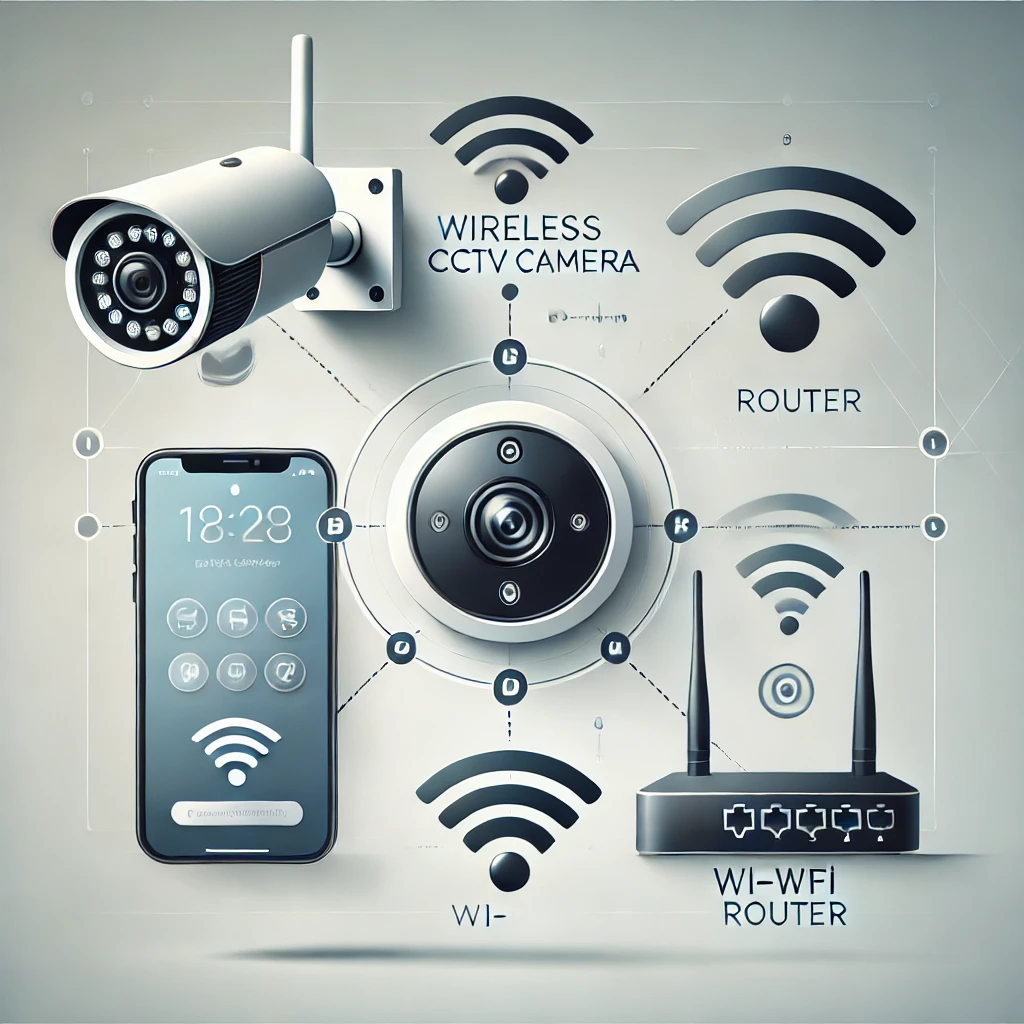
Step 1: Set Up the Wireless CCTV Camera
Unbox and Position the Camera:
Place your camera in a suitable location that offers a clear view of the area you want to monitor. Ensure it’s within range of your Wi-Fi network.
Power the Camera:
Plug the camera into a power source using the provided adapter. If your camera runs on batteries, ensure they are fully charged.
Check the Indicator Light:
Most cameras have an indicator light to show their status. A blinking light usually indicates the camera is ready for setup.
Step 2: Download the Camera App
Find the App:
Check the camera’s manual or packaging for the name of the official mobile app (e.g., GuardPlus, Arlo, or Mi Home).
Install the App:
Go to the App Store (iOS) or Google Play Store (Android) on your mobile phone.
Search for the app and download it.
Create an Account:
Open the app and sign up for an account using your email address.
Step 3: Connect the Camera to Wi-Fi
Turn on Wi-Fi on Your Phone:
Ensure your mobile phone is connected to the same Wi-Fi network you want the camera to use.
Launch the App:
Open the app and follow the on-screen instructions to add a new camera.
Scan the QR Code:
Some cameras require you to scan a QR code displayed in the app using the camera lens.
Enter Wi-Fi Details:
Input your Wi-Fi network’s SSID and password in the app to connect the camera.
Wait for Connection:
The app will notify you once the camera is successfully connected to the Wi-Fi.
Step 4: Link the Camera to Your Mobile App
Pair the Device:
The app may detect the camera automatically. If not, you can manually enter the camera’s serial number or scan its QR code.
Name Your Camera:
Assign a name to the camera (e.g., Living Room or Front Door) to easily identify it in the app.
Adjust Settings:
Configure settings like motion detection, recording schedules, and notification preferences.
Step 5: Test the Connection
View the Live Feed:
Open the app and check if the live feed from the camera is displayed.
Test Notifications:
Trigger the motion detection by moving in front of the camera to ensure you receive alerts on your mobile phone.
Access Recordings:
If your camera supports cloud or local storage, check that recordings can be accessed through the app.
Troubleshooting Tips
Ensure Strong Wi-Fi Signal: A weak signal can disrupt the connection. Place the camera closer to your router or use a Wi-Fi extender.
Update Firmware: Keep the camera’s firmware and the app updated to the latest versions.
Check Compatibility: Ensure your mobile phone meets the app’s system requirements.
Reset the Camera: If connection issues persist, reset the camera and repeat the setup process.
Benefits of Connecting a Wireless CCTV Camera to Your Mobile Phone
Remote Monitoring: View live feeds and recordings from anywhere in the world.
Real-Time Alerts: Receive instant notifications for motion or sound detection.
Ease of Use: Adjust settings and monitor multiple cameras from a single app.
Enhanced Security: Stay informed and respond quickly to potential threats.
By following these steps, you can seamlessly connect your wireless CCTV camera to your mobile phone and enjoy the peace of mind that comes with 24/7 security monitoring. Whether you’re at home, at work, or on vacation, your camera will keep you connected and informed.